Backup & Restore
Upsight can export your entire application state as a zip archive and restore it later. This is useful for migrating to a new machine, recovering from data loss, or creating periodic backups.
What Gets Backed Up
The export includes:
| Item | Description |
|---|---|
upsight.db |
The SQLite database containing all accounts, contacts, tasks, notes, opportunities, and other data |
config.toml |
Your application configuration (theme, AI settings, Salesforce config, monthly update tracking) |
prompts/ |
User prompt overrides, if you have customized any AI prompt templates |
win-wires/ |
Imported win wire PDF files, organized by account ID |
What is NOT Included
- OS keyring credentials -- Todoist API tokens and other secrets stored in your system keyring are not included in the backup. You will need to re-enter these after restoring on a new machine.
- Salesforce CLI authentication -- your
sforg login is managed by the Salesforce CLI independently. Runsf org login webagain on the new machine. - Session lock file -- the
upsight.sessionfile is transient and not backed up.
Exporting a Backup
The backup and restore controls are in the Settings screen under Data Backup & Restore.
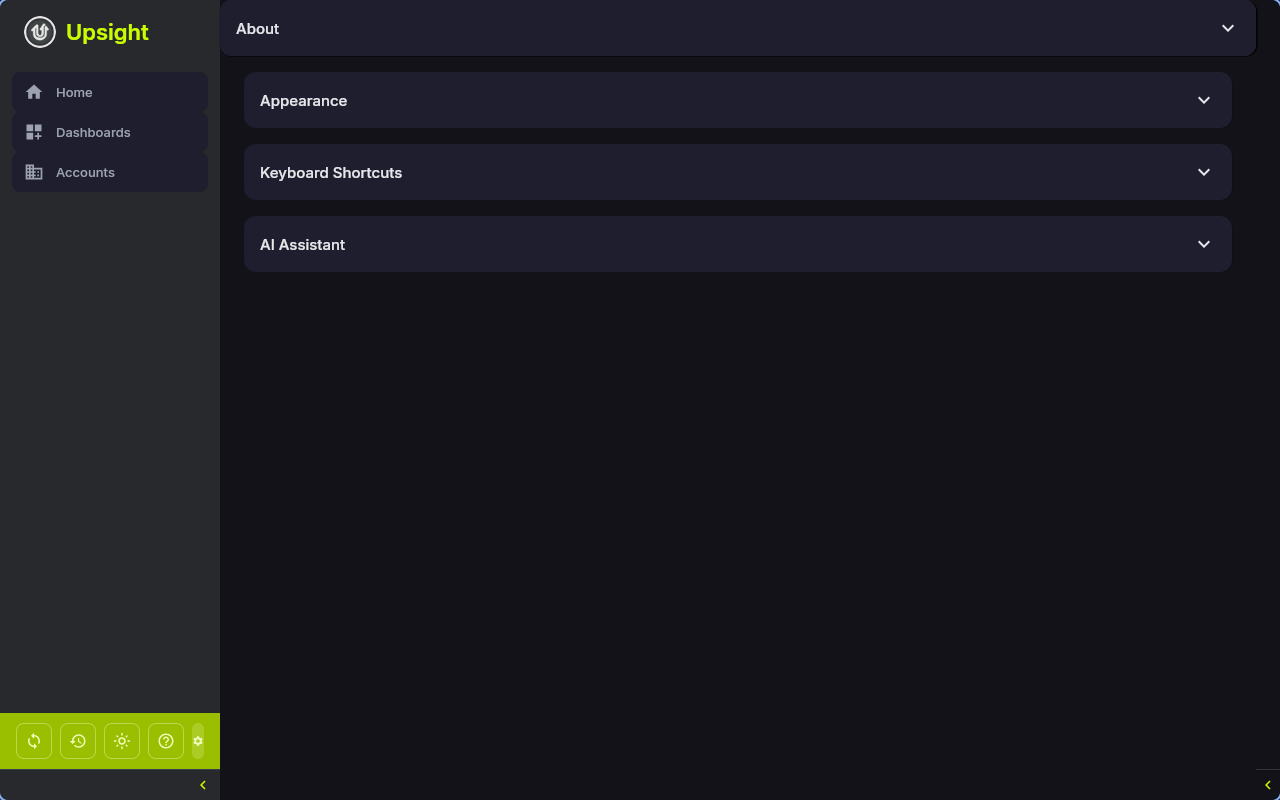
- Go to Settings > Data Backup & Restore
- Click Export
- Choose a destination directory in the file picker
-
Upsight checkpoints the database WAL (write-ahead log) to ensure the database file is consistent, then creates a timestamped zip file:
upsight-backup-20260326-143022.zip
The zip file name includes the date and time of the export.
Restoring from a Backup
- Go to Settings > Data Backup & Restore
- Click Import
- Select a backup zip file
Warning
Restoring a backup overwrites your current database and configuration. Read the safety section below before proceeding.
Pre-Restore Safety Backups
Before overwriting any files, Upsight creates .pre-restore copies of your current data:
upsight.db.pre-restoreconfig.toml.pre-restore
If something goes wrong, you can manually rename these files to recover your previous state.
After Restoring
- Restart the application for the restored database and config to take full effect
- Re-enter any credentials stored in the OS keyring (Todoist API token, etc.)
- Re-authenticate with
sf org login webif needed
Backup Size Limits
Imports are limited to 500 MB to guard against accidentally selecting the wrong file. If your backup exceeds this, something is likely wrong -- a typical backup with a large database and many win wire PDFs should be well under this limit.
Validation
On import, Upsight validates that the zip file contains at least one of upsight.db or config.toml. Archives that contain neither are rejected with an error message. Unknown entries in the zip are silently skipped.