Settings Reference
The Settings screen is organized into collapsible sections. Access it from the sidebar or with Ctrl+3.
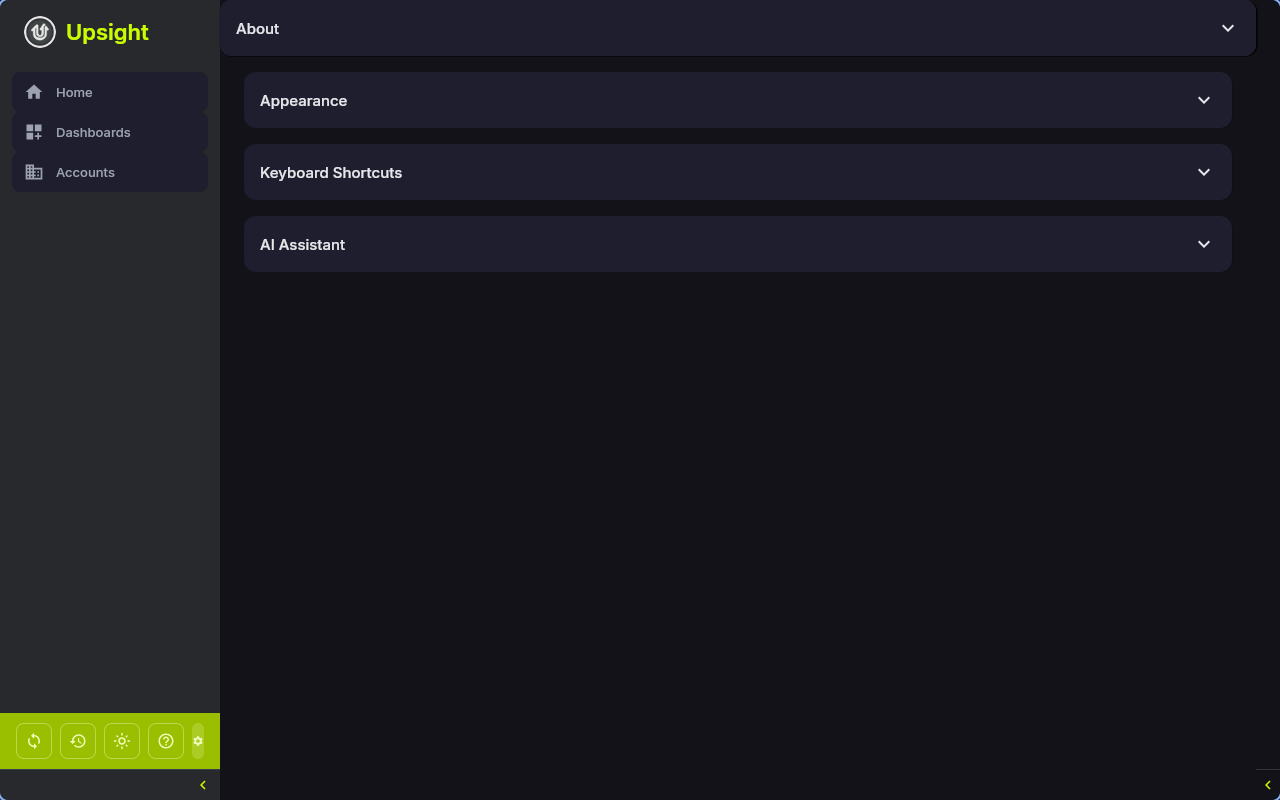
Appearance
Theme -- choose between three modes:
- Light -- always use the light color scheme
- Dark -- always use the dark color scheme
- System -- follow your operating system's preference
The theme applies immediately and is saved to config.toml.
Keyboard Shortcuts
A reference table of all keyboard shortcuts:
Navigation
| Action | Shortcut |
|---|---|
| Go back | Esc |
| Focus search | Ctrl+F |
| Dashboard | Ctrl+1 |
| Accounts | Ctrl+2 |
| Settings | Ctrl+3 |
Panels
| Action | Shortcut |
|---|---|
| Toggle sidebar | Ctrl+B |
| Toggle actions panel | Ctrl+Shift+A |
Account Detail
| Action | Shortcut |
|---|---|
| Next tab | Ctrl+Tab |
| Previous tab | Ctrl+Shift+Tab |
Note
On macOS, use Cmd instead of Ctrl for all shortcuts.
AI Assistant
- AI binary -- dropdown to select the AI CLI tool. Options include auto-detect (scans PATH for known binaries), any detected binary, or a custom path.
- Your Name -- used in first-person AI-generated content such as CXM sentiment entries. Enter your full name as you want it to appear in Salesforce.
Known binaries that auto-detect scans for: claude, gemini, and others.
Clipboard
- Clipboard tool -- dropdown to select the clipboard tool used for copy operations. Auto-detect finds
wl-copy(Wayland) orxclip(X11) on your PATH. You can override with a specific tool if auto-detect selects the wrong one.
Salesforce CLI
- SF binary -- dropdown to select the
sfCLI binary. Works the same as the AI binary selector: auto-detect, detected paths, or custom. - Auth status -- shows whether the CLI is authenticated and which org is connected.
See Salesforce Integration for detailed setup instructions.
Todoist Integration
- API Token -- enter your Todoist API token to enable the Todoist integration. Tokens are stored in your OS keyring (not in config.toml).
- Link individual Todoist projects to accounts via the Account Setup dialog.
Product Catalog
Manage the global list of products that appear in the product adoption grid on account detail screens.
- Add products with a name, category, and optional group name
- Products with the same group name appear as a single tile in the adoption grid
- Categories organize products into rows (Platform, Components, etc.)
- Toggle products as active or inactive
Infrastructure Catalog
Similar to the product catalog, this manages the list of infrastructure items available for tracking on accounts.
- Add infrastructure items with a name and category
- Toggle items as active or inactive
Data Backup & Restore
- Export -- create a zip archive of your database, config, prompt overrides, and win wire PDFs
- Import -- restore from a previously exported backup
See Backup & Restore for details.
Sync
Shows the current sync status:
- Session file path
- Current session holder (hostname and start time)
- Heartbeat status
See Multi-Machine Sync for setup instructions.
Paths
Displays the resolved file paths for:
| Path | Description |
|---|---|
| Config | Location of config.toml |
| Database | Location of upsight.db |
| Session | Location of upsight.session |
Default paths follow XDG conventions:
| Platform | Config | Data |
|---|---|---|
| Linux | ~/.config/upsight/config.toml |
~/.local/share/upsight/upsight.db |
| macOS | ~/Library/Application Support/upsight/config.toml |
~/Library/Application Support/upsight/upsight.db |
Both $XDG_CONFIG_HOME and $XDG_DATA_HOME are respected when set.
About
Shows the application version and branding.