Account reference
Quick reference for the account tabs that are mostly straightforward data views rather than multi-step workflows, plus the global Events screen. See Accounts for the full tab list and Win Wires/Agendas/Q&A for the tabs with real AI-generation workflows.
People
Three sub-tabs: Org Chart, People, and Teams.
People lists the account's contact directory (name, role, email, team, local time, and any tags). Use "Add contact" to pull a contact in from Salesforce (search by name or email, then import) or add one manually. Click a contact to edit it, set flags (Champion, Contact manager, Portal user, Academy user, Security contact, Primary, Executive), assign it to a team, or delete it. "Refresh from SF" re-pulls every Salesforce-linked contact; a per-contact refresh icon updates just one. If a support case names a contact that isn't in the directory yet, it appears at the top of the list as a one-click "Add" suggestion.
Teams lists the account's internal team structure (name, identifier, org). Expand a team to see its members. "New team" creates one; the edit icon renames it or moves it under a different parent. "Add collaboration" links two teams with a note describing what they work on together.
Org Chart renders the reporting hierarchy built from your teams, contacts, and collaborations. It stays empty until you've added at least one team.
Opportunities
Salesforce opportunities for the account, open and recently closed. The header shows total ACV and open count; a risk-weighted pipeline bar breaks pipeline ACV into Green/Yellow/Red by renewal risk when that data is synced.
Expand an opportunity for its full detail: ACV/TCV, Sales Play, competitors, GEP field-completion percentage, Champion and Economic Buyer, the full MEDDPICC write-up (Identified Pain, Value Drivers, Metrics, Outcomes, Challenges, Decision Criteria, Decision Process, Paper Process, Requirements), the GEP checklist (Met Champion, VOC, Budget, PBOs Agreed), key dates (TFW, TVE, EB Meeting) with a MAP link, contract dates, and ARR churn forecast. Any linked Professional Services engagements show their remaining and total hours.
Everything here is read-only Salesforce data except two notes fields, CX Notes and CS Handoff Notes. Click "Edit" next to either to write a note; it saves locally and queues for write-back like any other field edit.
Stack
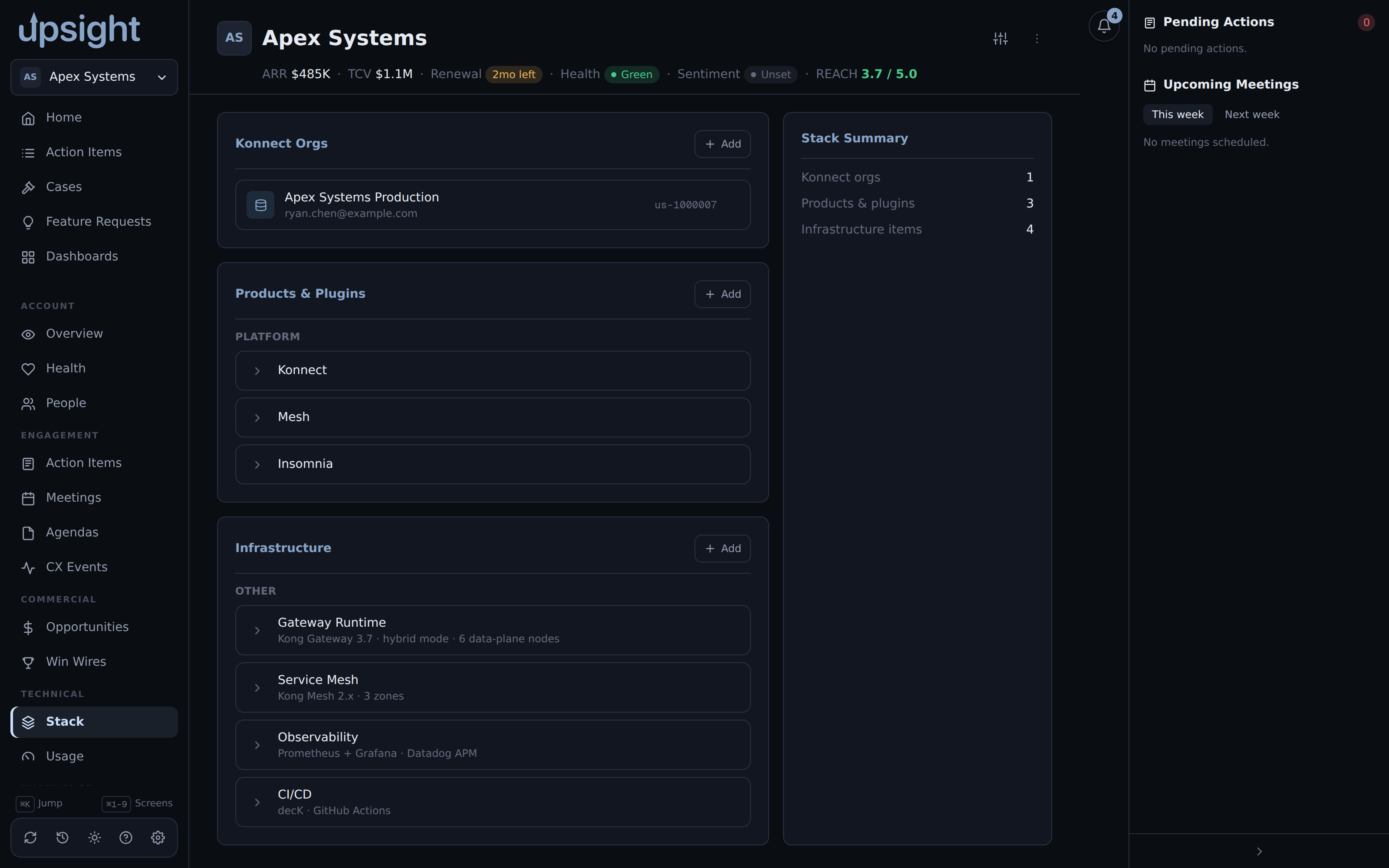
The customer's technical footprint, entered and maintained by hand (nothing here syncs from Salesforce): Konnect orgs, products and plugins, and infrastructure, each grouped by category with an "Add" button. Click an entry to edit or delete it.
Map a Konnect org to one of your internal teams using the "+ team" picker under that org, so ownership is visible without leaving the tab. Click a mapped team's chip to unmap it.
Usage
A read-only view of product adoption pulled from the account's synced Salesforce entitlement data: usage bars (used against contracted, colored red under 50%, yellow under 80%, green at 80%+) and value fields for Konnect, Cloud Gateway, Enterprise, Mesh, Insomnia, and production-date milestones. Nothing here is editable. It stays empty until entitlement data has been synced for the account.
Documents
Attaches file metadata to the account, which also feeds the account's AI context (meeting summaries, Q&A, and similar draw on document descriptions).
- Import file opens the native file picker, copies the file into Upsight's managed store, and records it.
- Add by path records a reference to a file or URL without copying anything, useful for something that already lives elsewhere. Fill in the file name (the type is inferred from its extension unless you set one), the path or URL, and an optional description.
Click a document's open icon to launch it in your OS's default app for that file type. Edit the description inline, or delete the record (this removes only the metadata, not the underlying file).
Resources
A read-only, categorized set of links for the account: Quick Links, Channels (tagged Internal or External), and Konnect Orgs (which mirror what you've added under Stack and link straight to the Konnect cloud console). Click any link to open it in your default browser. Click a category header to collapse or expand it.
Events (global)
Events is a global screen, not scoped to one account, listing system-driven activity across every account: Aha idea ships and status changes, and Salesforce field write-backs. Filter by system (Aha, Salesforce, Todoist) or category, or show unseen only. "Mark all read" clears the unseen badge.
Two actions are available inline, when applicable:
- A shipped Aha idea can be converted straight into a Todoist task with the "→ Todoist" button, if Todoist write-back is enabled in Settings.
- A field write-back can be reverted with the "Revert" button, which previews the change (old value, new value, and whether the live Salesforce value has since drifted from what was written) before you confirm.